
How to Pan Left and Right on the Celoxis Timeline
When the chart is wider than the screen, move the visible date window left or right.
- Click the ← and → buttons in the project header, or
- Scroll horizontally inside the chart area
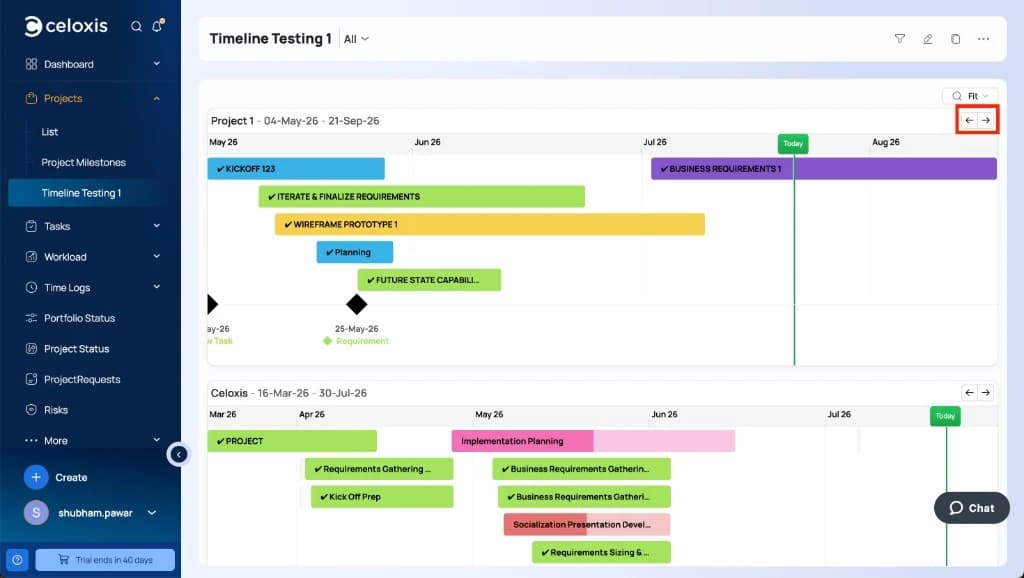
Pan buttons are grayed out when the whole chart already fits on screen — common in Fit mode for short schedules. Switch to Day or Month zoom if you need a wider chart to pan.