


Quick summary
- What carries over: task hierarchy, dependencies with lead and lag, constraints, resource assignments and the default baseline.
- What to set up first in Celoxis: users, calendars and holidays, and any custom fields you still need.
- How long it takes: hours, including initial setup, importing the Microsoft Project file, and validating tasks, dependencies, calendars, resource assignments, and custom fields. The actual time varies depending on project size, complexity, and data consistency. Larger or older plans may require additional adjustments and validation..
If your team plans projects in Microsoft Project desktop, you know the routine. One MPP file per project, updates collected by email, and a status report rebuilt by hand every week. That works for a single project. It gets much harder when leadership wants to see twenty projects, shared people and costs in one place.
This guide shows you how to migrate from Microsoft Project to Celoxis, step by step. You’ll see what to decide before you start, how to export and import your plans, exactly what transfers and what doesn’t, and how to check the result before your team switches over.
It’s written for the person doing the work, usually a PMO lead or project administrator, and for the leader who has to sign off on the move.
Who this guide is for
This guide is for teams using Microsoft Project desktop who want shared, web-based planning across all their projects.
- Project Online users: Microsoft retired Project Online on September 30, 2026. Our article on Project Online retirement covers your options, and a dedicated Project Online migration guide is coming soon.
- Still deciding whether to switch? Start with the pros and cons of Microsoft Project, or see how it stacks up in our Jira vs Microsoft Project vs Celoxis comparison.
If you’ve already decided, read on.
Why teams move off Microsoft Project
Most teams don’t leave Microsoft Project because its scheduling is weak. They leave because their work has outgrown a plan file that lives on one person’s computer.
Older versions are out of support
Microsoft ended support for Project 2016 and Project 2019 on October 14, 2025, so those versions no longer get security updates, bug fixes or technical support (Microsoft lifecycle notice). Newer desktop versions are still sold, so nobody is forced to leave.
But teams on older versions face a decision anyway: pay to upgrade the desktop tool, or use the moment to move to shared planning. Before you budget for either path, weigh the hidden costs of project management software, such as admin time, add-ons and manual reporting.
Separate plan files don’t add up to a portfolio
Each MPP file is its own world. Seeing every project together, comparing their progress, or spotting the same engineer booked on three plans takes manual work. That’s the gap project portfolio management software is built to close, and it’s often the reason a PMO starts looking. Our guide to PMO best practices covers why that portfolio view matters.
Status updates arrive late
When the plan sits on one machine, team members send updates by email and the project manager types them in. By the time anyone reads the report, the data is days old. Many teams end up running spreadsheets next to the plan to fill the gaps, and the cost of fragmented project tools adds up quickly.
Before you start: five decisions to make
A migration goes smoothly when these five decisions are made before anyone opens an import screen.
- Which projects move first. Start with active projects. Completed ones can stay archived as files unless you need them for portfolio reporting.
- How much history you need. Time-phased data, such as hours by day or week, doesn’t import. If you rely on that history, keep the original MPP files archived.
- Who owns the migration. Name one owner and agree a cutover date, after which nobody edits plans in Microsoft Project.
- Which custom fields you still use. Most plans collect fields that nobody fills in anymore. List the ones that matter, because you’ll recreate only those.
- Which calendars apply to which teams. Working days, working hours and holidays drive every date in the plan, so gather them now.
If this move is part of a wider change for your PMO, plan the people side too. Our article on change management in project success is a good place to start.
Step 1: Export your plans from Microsoft Project
Save each plan from Microsoft Project as an MPP or XML file. Celoxis accepts both formats.
Choose MPP or XML
MPP is Microsoft Project’s own file format, so you may not need to do anything beyond locating the files. XML is an open format that Microsoft Project can save through File > Save As, then choosing XML Format as the file type. For large Microsoft Project plans or files created in older versions of Microsoft Project, is it better to import using the native .mpp format or export to XML first?
We’d also like to know whether either format is more reliable for preserving task dependencies, calendars, resource assignments, and custom fields, and whether the team has encountered any recurring compatibility issues.
Clean the plan before you save it
A few minutes of cleanup here prevents most problems later.
- Remove abandoned tasks and test entries nobody uses.
- Make resource names consistent and match them to how people will be named in Celoxis. Matching names map automatically during import.
- Check the baseline. Only the default baseline imports, so make sure the one you want to track against is saved as the main Baseline, not Baseline 1 to 10.
- Note your custom fields so you can recreate the important ones in Celoxis.
Step 2: Prepare Celoxis for the import
Three things don’t come across in the file, so set them up in Celoxis before you import anything.
Create users first
The Microsoft Project resource list doesn’t import. What does import is the assignment of people to tasks. During the import, Celoxis asks you to match each Microsoft Project resource to a Celoxis user, and anyone with the same name is matched automatically. Create your users first and the mapping step takes seconds.
Set up calendars and holidays
Calendars, calendar exceptions and calendar options such as hours per day don’t import. Imported tasks are scheduled against the Celoxis calendar, so if Celoxis has a holiday your plan didn’t, affected tasks move to the next working day. Match your calendars now and you avoid most date surprises later.
Recreate the custom fields you need
Microsoft Project custom fields don’t carry over. Create the fields from your list in Celoxis so they’re ready to fill in once the plan is imported.

Step 3: Import the file into Celoxis
Celoxis can create a new project straight from a Microsoft Project file, or add the file’s tasks to a project you’ve already set up. Both routes are documented in the Celoxis Microsoft Project integration guide.
Create a new project from the file
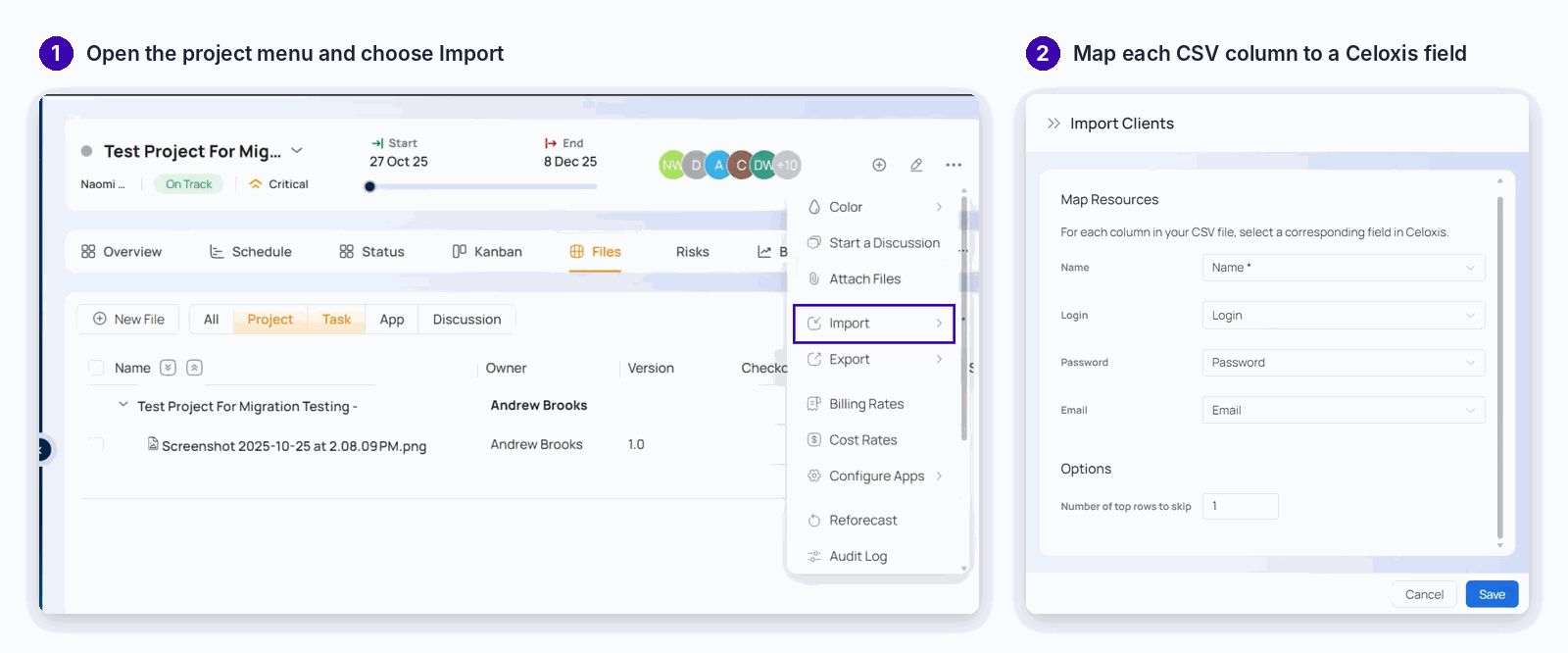
- From the main menu, go to Project > Import and choose Microsoft Project. [PLACEHOLDER: confirm menu labels against the live UI when taking screenshots.]
- Select your MPP or XML file.
- Map each Microsoft Project resource to a Celoxis user.
- Set the project details, such as name, dates and client.
- Open the imported project and review it on the Gantt chart.
Add tasks to an existing project
Open the project, then go to Project Options > Import and choose Microsoft Project. If the project already has tasks, Celoxis asks whether to keep them and add the imported tasks at the end, or replace them.
Map resources carefully
The mapping screen is where most problems start or stop. Check that every resource is matched to the right person, especially people with similar names. A wrong match puts assignments on the wrong person, and that skews resource capacity planning across every project they work on.
What transfers and what doesn’t
The schedule itself comes across. What doesn’t is mostly setup that lives outside the plan, which is why Step 2 matters.
| Item | Imported? | What to do |
|---|---|---|
| Task hierarchy (parent and child tasks) | Yes | Nothing |
| Dependencies, including lead and lag | Yes | Spot-check a few |
| Constraints | Yes | Review any fixed-date constraints |
| Resource assignments | Yes | Map to Celoxis users during import |
| Default baseline | Yes | Make sure the right baseline is the default |
| Resource list | No | Create users in Celoxis first |
| Calendars and exceptions | No | Set up in Celoxis before importing |
| Calendar options (hours per day, days per month) | No | Match them in Celoxis settings |
| Custom fields | No | Recreate the ones you need |
| Other baselines (Baseline 1 to 10) | No | Keep the original file archived |
| Time-phased data | No | Keep the original file archived |
A few fields also have different names in Celoxis:
| Microsoft Project | Celoxis |
|---|---|
| % Work Complete | Percent Complete |
| Priority (number) | Very High (700+), High (600+), Normal (500), Low (400+), Very Low (below 400) |
| Task Mode | Is Manually Scheduled |
Worked example: importing a real project plan
| Detail | What happened |
|---|---|
| The plan | [e.g., an IT rollout with X tasks, Y dependencies, Z people and a saved baseline] |
| Came across cleanly | [e.g., hierarchy, dependencies, lags, assignments] |
| What shifted, and why | [e.g., N tasks moved a day because the Celoxis calendar had a holiday the original didn’t] |
| How it was fixed | [e.g., aligned the holiday calendar and re-imported] |
| Time taken | [setup time, import time, validation time] |

The main lesson is to get the project setup right before importing everything. Reviewing a sample plan and checking calendars, resources, and custom fields first can help catch problems early and avoid repeating the same fixes across multiple projects. This is a recommended approach, rather than a verified result from a specific Celoxis migration.
Step 4: Validate the imported plan
Before anyone works in the new plan, compare it with the original. A short check now saves weeks of confusion later.
- The project finish date matches the original
- The task count matches
- Key milestones fall on the same dates
- Dependencies and lead or lag times look right on a sample of tasks
- Every assignment sits with the right person
- Baseline dates match the original baseline
If dates don’t match
Small date differences almost always trace back to setup. Check these in order:
- Calendars. Working days, hours and holidays in Celoxis should match the ones in Microsoft Project.
- Unsupported settings. Confirm the plan doesn’t rely on Microsoft Project options or items that don’t import, listed in the table above.
- Resource mapping. A resource matched to the wrong user picks up that user’s calendar.
Also note that Microsoft Project doesn’t support time zones or fractional non-working time, which can explain small shifts. For a refresher on how dependencies and constraints drive dates, see our guide to project scheduling techniques.
Step 5: Run in parallel, then cut over
Run both systems for a short period, then switch completely on a set date. A clear cutover stops two versions of the truth from drifting apart.
- Run in parallel for a short, fixed period. [PLACEHOLDER: recommended length from the Celoxis team.]
- Set a freeze date after which nobody edits plans in Microsoft Project.
- Bring across any late changes made during the parallel run.
- Archive the original files somewhere the team can find them.
- Move status updates and reporting into Celoxis from day one, so the new plan stays the single source.
Worried about committing? Celoxis can also export a project back to Microsoft Project as an XML file. Tasks, dependencies, constraints, assignments, the default baseline, calendars and resources go with it. Hour-based allocations become percentages, because Microsoft Project doesn’t support allocation in hours.
What changes for your team after the move
The schedule looks familiar after the move. What changes is everything around it: who can see it, who updates it, and how much reporting still happens by hand.
One portfolio view instead of separate files
Every project sits in one system, so you can compare progress, dates and health across the portfolio without merging files. Portfolio leaders get the overview; project managers keep the detail.
Resource capacity across all projects
Because every assignment lives in one place, you can see who is overloaded across all projects, not just inside one plan. Our guide to resource management software explains why that cross-project view matters.
Time, costs and financials next to the schedule
Time, expenses and project costs can be tracked against the same plan, so you see financial impact as work happens. That cuts down the manual reconciliation between plan files, timesheets and spreadsheets. See how project financial management works in practice.
Dashboards with drill-down
Reports and dashboards draw from live project data. You can start from a portfolio summary and drill down to the task behind any number, instead of rebuilding a status report every week.
Updates from the people doing the work
Team members update their own tasks, from the browser or the Celoxis mobile app, so the plan reflects reality without anyone retyping it. That’s the core idea behind collaborative project management software.
Cloud or on-premise
Teams leaving a desktop tool often have rules about where data lives. Celoxis runs as a cloud service or in your own environment, and our comparison of cloud and on-premise project management software helps you choose. If you need your own servers, see Celoxis on-premise deployment.
Common mistakes to avoid
Most migration problems come from skipped setup, not from the import itself.
- Importing before users exist. Assignments have nobody to map to, and you end up fixing them task by task.
- Leaving Celoxis calendars at their defaults. Holidays and working hours that don’t match will shift dates.
- Expecting custom fields to come across. They don’t. Recreate the ones you need before importing.
- Saving the wrong baseline as the default. Only the default baseline imports, so variance tracking starts from the wrong point.
- Deleting the original MPP files. They’re your only copy of time-phased history and extra baselines.
- Skipping validation. Errors found by the team weeks later are much harder to fix than errors found on day one.
The Celoxis playbooks identify two migration concerns worth highlighting, although they don’t confirm that these are the most frequent issues reported by the support team.
1. Inconsistent project structures: Microsoft Project files may use different calendars, resource assignments, and custom fields. These differences can require additional setup and validation after import.
2. Deciding what data to migrate: Customers may have many historical projects but only need active plans initially. Identifying what must move first helps reduce migration complexity and effort.
Short quote to validate with Celoxis Support
“The biggest challenge is often not importing the project files. It’s making sure the calendars, resources, and project data are consistent so everything works correctly after migration.”
Ready to move your first project?
To migrate from Microsoft Project to Celoxis, set up users, calendars and fields first, import each plan, and check the result before your team switches over. The schedule itself carries across. What you gain is one shared place for every project, person and cost, which is what enterprise project management software is meant to give a growing PMO.
The simplest way to judge the fit is with your own data. Start a free Celoxis trial and import one live project, or check Celoxis pricing to plan the rollout. Want to hear from teams who’ve made the move? Read Celoxis reviews.


Comments
0 responses