
It’s Friday afternoon. Task updates are spread across a shared spreadsheet, a Kanban board, three chat threads, and someone’s inbox. Before Monday’s leadership review, a project manager will spend hours chasing people and stitching it all into one status report.
That is the problem task tracking software is meant to solve. When that weekly stitching becomes routine, it’s usually a sign the team needs to replace fragmented tools with one system everyone updates.
Not every tool solves the problem the same way. Some are built for one person’s to-do list. Others track a team’s work well but stop at the edge of a single project. Only a few carry task progress all the way up into project and portfolio reporting.
This guide compares the 12 best task tracking software tools in 2026. We judged them on what matters as teams grow: visibility, time tracking, reporting, and how much manual effort it takes to know where work stands.
Disclosure: Celoxis publishes this guide, and Celoxis is on the list. We reviewed it against the same criteria as every other tool, including the situations where it is not the right fit.
Key takeaways
- For individuals and very small teams, lightweight tools such as Todoist and Trello are often enough.
- For cross-functional teams, Asana, ClickUp, monday.com, and Wrike offer flexible views and strong collaboration.
- For PMOs running many projects at once, the deciding factor is whether task progress rolls up into project and portfolio reporting without anyone rebuilding it in a spreadsheet.
What Is Task Tracking Software?
Task tracking software is a tool that records every piece of work a team must complete, including who owns it, when it is due, its current status, and the effort spent on it. It gives managers a live view of progress, so they can spot delays early instead of discovering them in a weekly status meeting.
What a task tracker actually records
A good task tracker holds more than a task name and a checkbox. Each task usually carries:
- Owner: the one person accountable for finishing it.
- Status: not started, in progress, blocked, or done.
- Dates: start date, due date, and the date it actually finished.
- Effort: estimated hours and hours actually logged.
- Dependencies: which tasks must finish before this one can start.
- Context: comments, files, and the history of changes.
Together, these fields answer the three questions every manager asks: what is happening, who is doing it, and will it finish on time?
Task tracking vs task management vs project management
The three terms overlap, and buyers often shop in the wrong category. Here is the simplest way to tell them apart.
| Task tracking | Task management | Project management | |
|---|---|---|---|
| Main question | Where does each task stand right now? | What needs to be done, and by whom? | Will the whole project deliver on time and on budget? |
| Focus | Status, progress, effort | Creating, assigning, prioritizing | Plans, schedules, resources, costs, risks |
| Typical user | Team members and team leads | Individuals and team leads | Project managers and PMOs |
| Output | Live progress view | Organized task lists | Project and portfolio reports |
In practice, most modern tools blend all three. If you are mainly choosing a tool to organize and assign work, our guide to task management software goes deeper. To see where the two categories split, read our comparison of task management vs project management software. And if you are still getting familiar with the wider category, start with what is project management software.
Task tracker vs to-do list
A to-do list reminds one person what to do. A task tracker shows a whole team what is being done, by whom, and how far along it is. The difference matters the moment more than one person depends on the same work.
Which Stage of Task Tracking Is Your Team At?
The best task tracker for your team depends on where you are today. Most organizations move through four stages. Find yours, and the rest of this guide will make more sense.
Stage 1: Personal lists
Work lives in sticky notes, email flags, and personal to-do apps.
- You know you’re here when: only the person doing the work knows its status.
- The risk: tasks disappear when someone is sick, busy, or leaves.
- Tools that fit: Todoist, Microsoft To Do, a notebook.
Stage 2: Shared team boards
The team shares one board, often in columns such as To Do, Doing, and Done.
- You know you’re here when: everyone can see the team’s work, but nobody can see how it connects to deadlines or budgets.
- The risk: boards grow cluttered, and status updates depend on people remembering to drag cards. Our guide to Kanban task boards covers how to keep them useful.
- Tools that fit: Trello, Notion, Microsoft Planner.
Stage 3: Project-level tracking
Tasks connect to timelines, dependencies, and logged hours.
- You know you’re here when: you can tell whether one project is on schedule, but comparing several projects still means a spreadsheet.
- The risk: each project manager reports differently, so leadership gets inconsistent numbers.
- Tools that fit: Asana, ClickUp, monday.com, Wrike, Smartsheet, Jira.
Stage 4: Portfolio visibility
Task progress rolls up automatically into project health and portfolio reporting.
- You know you’re here when: a director can open one dashboard and see which projects are at risk, where effort is going, and how costs compare with plan.
- The risk: choosing a tool that handles tasks well but cannot connect them to resources, time, and costs across the portfolio.
- Tools that fit: Celoxis and other program manager software built to manage multiple projects at once.
Quick routing: At Stage 1 or 2, start with the lighter tools in the comparison table below. At Stage 3 or 4, go straight to the Celoxis review and the section on portfolio-level task tracking.
How We Evaluated These Task Tracking Tools
We scored each tool on seven criteria that matter to teams and PMOs, not just to individual users.
| Criterion | What we looked for |
|---|---|
| Progress roll-up | Does task status feed project and portfolio views automatically? |
| Time tracking | Can people log hours against tasks, and do those hours feed reports? |
| Reporting and drill-down | Can a manager move from a summary view down to a single task? |
| Views | List, board, Gantt, calendar, and workload views |
| Ease of adoption | How quickly a new team member can start updating tasks |
| Scale | How well the tool handles many projects, teams, and users |
| Pricing transparency | Whether pricing is published and easy to compare |
These criteria build on the key features of project management software that matter most as work scales. For a fuller checklist you can use in your own evaluation, see our project management software evaluation criteria.
Last verified: September 2026. Pricing reflects each vendor’s published plans and the lowest paid plan billed annually, unless noted. Vendors change plans often, so confirm current pricing before you buy.
Best Task Tracking Software at a Glance
The table below compares all 12 task tracking tools on the features that separate a simple task list from a system leaders can report from. Prices are the lowest paid plan, per user per month, billed annually.
| Tool | Best for | Stage fit | Free plan | Time tracking | Multi-project view | Starting price |
|---|---|---|---|---|---|---|
| Celoxis | PMOs needing task progress rolled into portfolio reporting | 3 to 4 | No (14-day trial) | Built in, with expenses | Yes, portfolio level | $10 (min. 5 full-access users) |
| monday.com | Customizable team workflows | 2 to 3 | Yes (up to 2 seats) | Pro plan | Dashboards across boards | $9 per seat (min. 3 seats) |
| Asana | Cross-functional coordination | 2 to 3 | Yes (Personal) | Advanced plan | Portfolios on Advanced | $10.99 |
| ClickUp | All-in-one flexibility | 2 to 3 | Yes (Free Forever) | Built in on paid plans | Dashboards | $7 |
| Smartsheet | Spreadsheet-comfortable teams | 3 | No (30-day trial) | Via add-on | Reports and dashboards | $9 per member |
| Wrike | Complex dependencies at scale | 3 | Yes | Paid plans | Dashboards; portfolio tools on higher tiers | $10 |
| Jira | Software and engineering teams | 3 | Yes (up to 10 users) | Basic work logging | Cross-project plans on Premium | About $7.91 |
| Microsoft Planner | Microsoft 365 organizations | 2 to 3 | Basic Planner included in Microsoft 365 | Limited | Portfolio features on Plan 3 | $10 (Plan 1) |
| Zoho Projects | Budget-conscious teams | 2 to 3 | Yes (small teams) | Built-in timesheets | Portfolio dashboard on higher tiers | $4 |
| Notion | Teams combining docs and tasks | 2 | Yes | No native tracking | Linked databases | $10 |
| Trello | Simple Kanban tracking | 1 to 2 | Yes | Via Power-Ups | Limited | $5 |
| Todoist | Individuals and very small teams | 1 | Yes | No | No | $5 (Pro, 1 user); $8 per user (Business) |
Sticker prices rarely tell the full story. Seat minimums, add-ons, and the plan you actually need for time tracking or portfolios can change the math. Our project management software pricing comparison explains the main pricing models and what to watch for.
The 12 Best Task Tracking Tools, Reviewed
Each review follows the same structure, so you can compare tools quickly: who it suits, where it stands out, where it falls short, and who should skip it.
1. Celoxis
Best for: PMOs and project directors who need task progress to roll up into project and portfolio reporting.
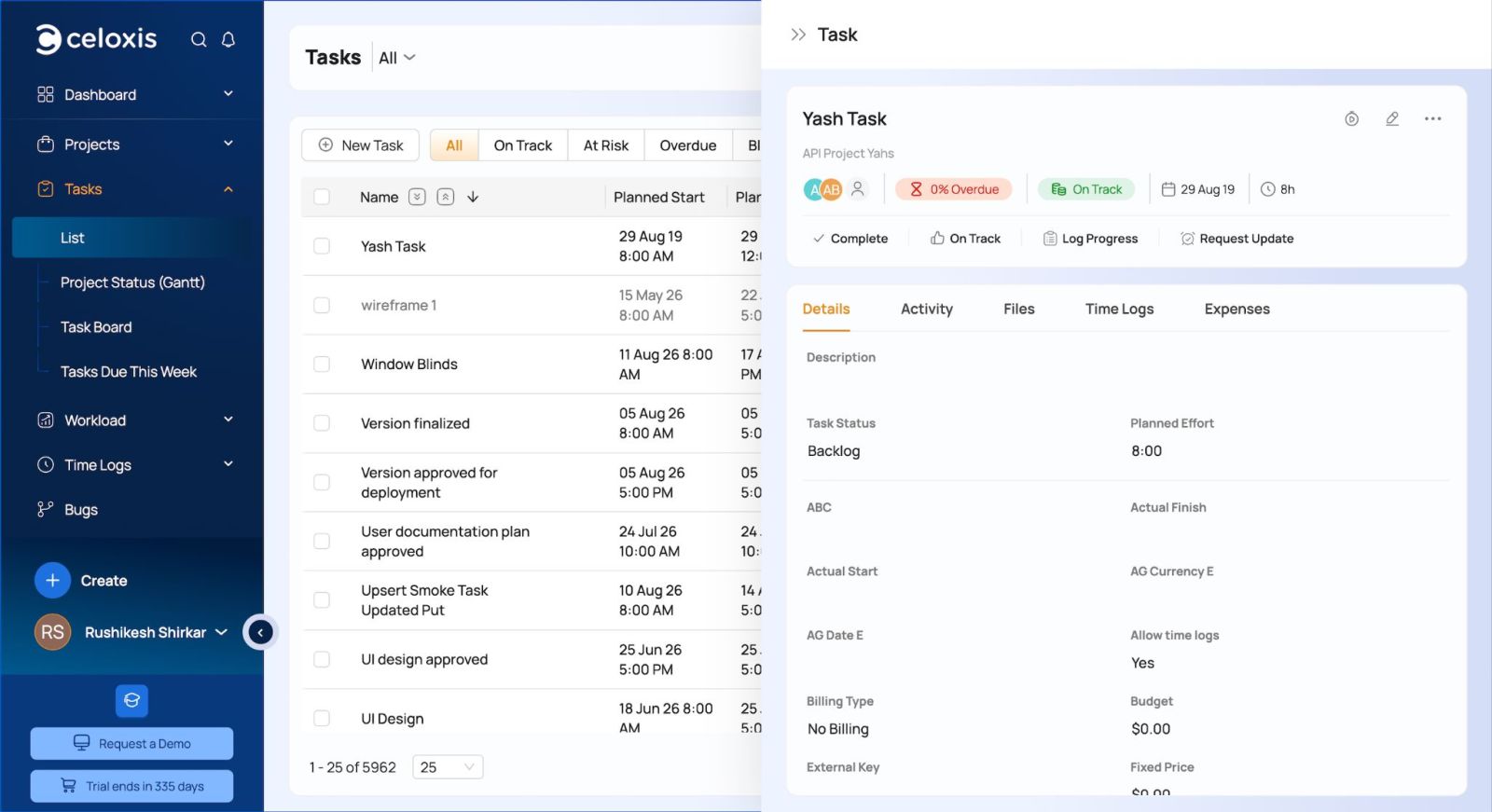
Celoxis is a project and portfolio management platform where task tracking is the foundation, not the whole product. Team members update tasks and log time, and that data feeds project status, resource views, and portfolio dashboards without anyone consolidating it by hand.
Where it stands out
- Portfolio visibility: task status rolls up into project health and portfolio views, so leadership sees one version of the truth.
- Time and expenses against tasks: hours and costs are captured where the work happens, which supports planned versus actual comparisons.
- Reporting and drill-down: managers can move from a portfolio dashboard down to the project and task behind a number.
- Governance and workflows: approvals and standard processes help keep tracking consistent across teams.
- Multiple views and access: Gantt charts, Kanban boards, and task lists, with a mobile app for updates on the go.
Where it falls short
- No free plan. There is a 14-day trial, and paid plans require at least 5 full-access users.
- It offers more depth than a small team tracking simple to-dos needs, so casual users may need a short onboarding period.
Pricing: From $10 per user per month, billed annually. Cloud and on-premises deployment are both available.
Choose it if: you run many projects and want task data, time, and costs in the same place as portfolio reporting. Skip it if: you only need a personal or single-team to-do list.
See how it compares with other platforms in our PMO software comparison, or read verified Celoxis reviews from customers.
See it on your own projects: Book a 30-minute Celoxis demo. (CTA: demo)
2. monday.com
Best for: Teams that want highly customizable, visual workflows.

monday.com organizes work on colorful boards that teams can shape to almost any process. It is popular with marketing, operations, and cross-functional teams.
Where it stands out
- Very flexible boards, columns, and automations.
- Many views, including Kanban, timeline, and calendar.
- A large integrations marketplace.
Where it falls short
- Paid plans require at least 3 seats, and time tracking sits on the Pro plan.
- Portfolio-level reporting depends on how carefully boards are set up and kept consistent.
Pricing: Free for up to 2 seats. Paid plans from $9 per seat per month, billed annually.
Choose it if: you want to design your own workflows visually. Skip it if: you need standardized, portfolio-wide reporting out of the box. Our monday vs Celoxis comparison covers the differences in detail.
3. Asana
Best for: Cross-functional teams coordinating priorities and deadlines.

Asana is a clean, well-designed work management tool. It is strong at helping teams agree on who does what, and by when.
Where it stands out
- Clear task ownership, due dates, and dependencies.
- Timeline and workflow builder on the Starter plan.
- Goals and portfolios for connecting work to objectives on the Advanced plan.
Where it falls short
- Native time tracking and portfolios require the Advanced plan.
- Cost and budget tracking are limited compared with project and portfolio management platforms.
Pricing: Free Personal plan. Starter from $10.99 per user per month, billed annually.
Choose it if: coordination across teams is your main pain point. Skip it if: you need time, cost, and task data in one place. Explore Asana alternatives if that sounds like your team.
4. ClickUp
Best for: Teams that want many views and features in one flexible workspace.

ClickUp combines tasks, docs, goals, and dashboards. Almost everything is configurable, which is both its strength and its challenge.
Where it stands out
- A generous Free Forever plan with unlimited users.
- Many views, including list, board, Gantt, and calendar.
- Built-in time tracking on paid plans.
Where it falls short
- The number of options can overwhelm new users.
- AI features are sold separately from the base plans.
Pricing: Free Forever plan. Unlimited from $7 per user per month, billed annually.
Choose it if: you want flexibility at a low entry price. Skip it if: your team prefers a simpler, more guided setup. Compare ClickUp alternatives before you commit.
5. Smartsheet
Best for: Teams that are comfortable working in spreadsheets.

Smartsheet looks like a spreadsheet but adds Gantt charts, automation, forms, and reports. The learning curve is short for Excel users.
Where it stands out
- A familiar grid interface.
- Reports and dashboards that pull from many sheets.
- Free viewers, so stakeholders can see work without a paid seat.
Where it falls short
- No free plan for new sign-ups; a 30-day trial is available.
- Detailed time and resource tracking typically needs add-ons.
Pricing: Pro from $9 per member per month, billed annually.
Choose it if: your team thinks in rows and columns. Skip it if: you want time tracking and portfolio reporting built in. See our list of Smartsheet alternatives.
6. Wrike
Best for: Teams managing complex dependencies across larger projects.

Wrike offers structured workflows, interactive Gantt charts, and dashboards, with more advanced planning features on higher tiers.
Where it stands out
- Strong dependency management and Gantt charts.
- Custom workflows and request forms.
- A free plan with unlimited users for basic task tracking.
Where it falls short
- Seats are sold in blocks, and advanced resource and budgeting features sit on custom-priced tiers.
- Setup can take time for smaller teams.
Pricing: Free plan. Team from $10 per user per month.
Choose it if: you manage large, interdependent projects. Skip it if: you want transparent pricing for portfolio features. Our guide to wrike alternatives lists other options.
7. Jira
Best for: Software and engineering teams.

Jira is built for agile development, with backlogs, sprints, and issue tracking at its core.
Where it stands out
- Scrum and Kanban boards designed for development work.
- Deep integration with developer tools.
- Free for up to 10 users.
Where it falls short
- Technical terminology can slow down non-engineering teams.
- Cross-project planning and advanced roadmaps require Premium.
Pricing: Free for up to 10 users. Standard from about $7.91 per user per month.
Choose it if: your team ships software in sprints. Skip it if: you need to track work across engineering, operations, and business teams in one view. Compare Jira alternatives.
8. Microsoft Planner
Best for: Organizations already standardized on Microsoft 365.
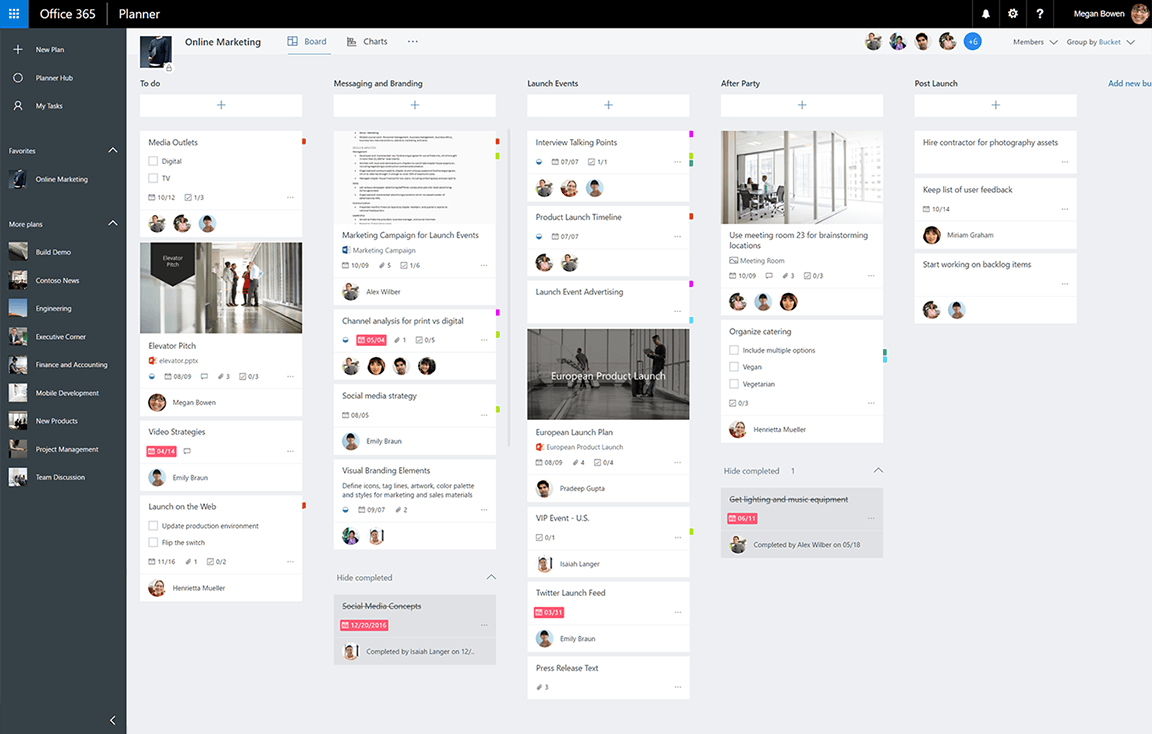
Planner now brings together Microsoft’s task and project tools. Basic Planner is included with Microsoft 365, and premium plans add timelines and portfolio features.
Where it stands out
- Works inside Microsoft Teams and Outlook.
- Basic task boards at no extra cost for Microsoft 365 users.
- A familiar environment for Microsoft-first companies.
Where it falls short
- Dependencies, custom fields, and portfolio features sit on higher-priced plans.
- Time tracking and financial reporting are limited without extra tools.
Pricing: Basic Planner included with Microsoft 365. Planner Plan 1 from $10 per user per month.
Choose it if: your company lives in Microsoft 365 and needs simple team boards. Skip it if: you need portfolio reporting at scale. Read Microsoft Planner vs Trello vs Celoxis for a side-by-side view.
9. Zoho Projects
Best for: Budget-conscious teams that want solid features at a low price.

Zoho Projects covers tasks, Gantt charts, timesheets, and issue tracking, and it connects well with other Zoho apps.
Where it stands out
- Low per-user pricing.
- Built-in timesheets.
- Strong fit for teams already using Zoho CRM or Zoho Books.
Where it falls short
- The free plan is limited to very small teams and projects.
- Portfolio-level features require higher tiers.
Pricing: Free plan for small teams. Premium from $4 per user per month, billed annually.
Choose it if: cost is your main constraint. Skip it if: you expect to scale to many projects and teams. Consider a Zoho Projects alternative.
10. Notion
Best for: Teams that want tasks and documentation in one workspace.

Notion is a flexible workspace for docs, wikis, and databases. Many teams build their own task trackers inside it.
Where it stands out
- Tasks live next to specs, notes, and wikis.
- Highly customizable databases and views.
- A useful free plan for individuals.
Where it falls short
- No native time tracking or resource management.
- Trackers built by hand can drift as teams grow.
Pricing: Free plan. Plus from $10 per member per month, billed annually.
Choose it if: your team values documentation as much as task tracking. Skip it if: you need consistent reporting across many projects.
11. Trello
Best for: Small teams that want simple, visual Kanban tracking.

Trello pioneered the card-and-board approach. It is quick to learn and pleasant to use.
Where it stands out
- Very easy to start; most people need no training.
- Built-in Butler automation on every plan.
- A useful free plan for up to 10 collaborators.
Where it falls short
- Timeline, calendar, and table views require Premium.
- Time tracking and reporting depend on Power-Ups.
Pricing: Free plan. Standard from $5 per user per month, billed annually.
Choose it if: you need a simple board, fast. Skip it if: you need dependencies, time tracking, or cross-project reporting. See Trello alternatives.
12. Todoist
Best for: Individuals and very small teams managing daily tasks.
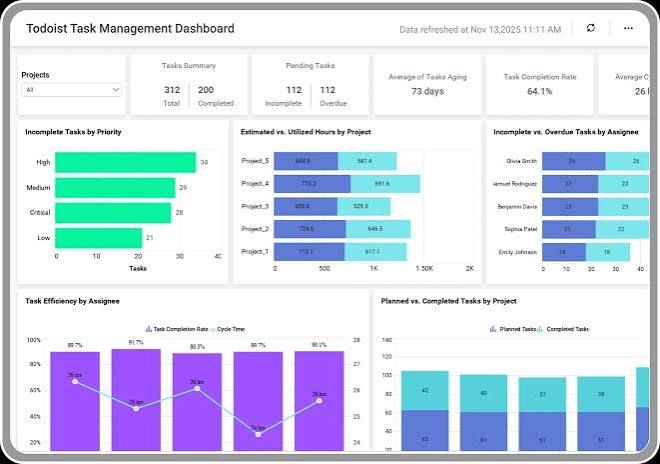
Todoist is a fast, focused to-do app. It is one of the best tools for personal task tracking.
Where it stands out
- Quick task capture with natural language.
- Recurring tasks and reminders.
- Clean apps on every platform.
Where it falls short
- No time tracking, Gantt charts, or resource planning.
- Not designed for project or portfolio reporting.
Pricing: Free Beginner plan. Pro from $5 per month, and Business from $8 per user per month, billed annually.
Choose it if: you are tracking your own work. Skip it if: others depend on your updates for project reporting. For individuals, our roundup of time management tools covers more options.
Which Tools Offer Real-Time Task Execution Tracking and Reporting?
The best tools for real-time task execution tracking and reporting update status as work happens, connect logged time to each task, and feed dashboards automatically. For single teams, ClickUp, monday.com, Asana, and Wrike work well. For organizations running many projects, platforms such as Celoxis roll task progress into project and portfolio reporting without manual consolidation.
What “real time” should actually mean
Many tools claim real-time tracking. In practice, a status report is only as current as the last manual update. True real-time task monitoring means:
- Status changes the moment someone updates a task or logs time.
- Dashboards read from live task data, not from a copy someone exported on Friday.
- Managers see progress without asking for it in a meeting.
The 4 signals that predict a slip
A good task progress tracker surfaces these warning signs before a deadline is missed:
- Overdue tasks: work past its due date that nobody has re-planned.
- Blocked dependencies: tasks waiting on work that has not started.
- Effort over estimate: tasks consuming more hours than planned. Understanding duration vs effort helps teams read this signal correctly.
- Idle tasks: work marked in progress with no updates for days.
These signals become far more useful when they roll up across projects. For the portfolio-level view, see the metrics PMOs track in project management software.
Which tools on this list handle it well
- Portfolio level: Celoxis, with task, time, and cost data feeding portfolio dashboards.
- Team and project level: Wrike, ClickUp, monday.com, Asana, and Smartsheet, with live dashboards on paid plans.
- Engineering teams: Jira, with sprint and board reporting.
- Personal or small team: Trello and Todoist, where status is visible but reporting is basic.
What Task Tracking Looks Like at the Portfolio Level
At the portfolio level, task tracking stops being a list and becomes the data behind leadership decisions. Here is what a Monday morning looks like when task updates flow straight into reporting.
9:00 a.m.: A team member updates a task
A developer marks a task complete and logs four hours against it from her phone. No email, no spreadsheet, no status meeting.
9:05 a.m.: The project view reflects it
The project timeline and status update automatically. The project manager sees that the milestone is now on track, and that actual effort ran slightly above the estimate.
9:10 a.m.: The PMO dashboard shows portfolio health
The PMO director opens one dashboard. It shows which projects are on track, at risk, or late, with the option to drill down from a portfolio summary to the exact tasks behind a red status. Nobody compiled it by hand. For examples of how these views are laid out, browse these Celoxis dashboard examples, or read how project management BI dashboards turn project data into decisions.
What leadership can now answer
- Which projects are at risk, and which tasks are causing it.
- Where effort is going, because time is logged against tasks rather than in a separate time tracking software tool.
- How costs compare with plan, since hours and expenses connect to projects.
- Whether people are overloaded, using the same task data that drives resource planning software.
This is the gap between a task tracker and a full platform for portfolio visibility. If you are evaluating that category, our overview of portfolio management tools explains what to look for.
“Whether it’s tracking project portfolios, scheduling resources and tasks, or generating weekly reports, Celoxis has become our go-to solution.”
Abir Sandra Habbal, Sr. IT Manager, McDonald’s
How to Choose the Right Task Tracker for Your Team Size
The right team task tracker depends less on features and more on how many people and projects need to share one view of work.
| Team profile | What matters most | Tools to shortlist |
|---|---|---|
| Individual | Fast capture, reminders, simplicity | Todoist, Trello, Notion |
| Small team (under 10) | Shared boards, easy adoption, low cost | Trello, ClickUp, Zoho Projects, Microsoft Planner |
| Cross-functional team | Dependencies, multiple views, automation | Asana, monday.com, Wrike, Smartsheet, Jira |
| PMO with many projects | Portfolio roll-up, time and cost tracking, drill-down reporting | Celoxis |
Managers carry a different load than individual contributors. Our guide to task management for managers covers how to delegate and follow up without micromanaging. Larger organizations should also read about project management software for large teams.
Must-have vs nice-to-have features
| Feature | Individual | Team | PMO |
|---|---|---|---|
| Task owner, status, due date | Must-have | Must-have | Must-have |
| Kanban and list views | Nice-to-have | Must-have | Must-have |
| Dependencies and Gantt charts | Not needed | Nice-to-have | Must-have |
| Time tracking against tasks | Not needed | Nice-to-have | Must-have |
| Approval workflows | Not needed | Nice-to-have | Must-have |
| Portfolio dashboards and drill-down | Not needed | Not needed | Must-have |
| Cost and budget tracking | Not needed | Not needed | Must-have |
If approvals and handoffs are where your work slows down, a tracker alone may not be enough. Workflow management software adds structure to those steps.
10 Questions to Ask Before You Book a Task Tracking Demo
A demo is only useful if you ask the questions that expose how a tool behaves with your real work. Bring these to every vendor call.
- Can task progress roll up to project and portfolio views without manual work?
- How is time logged against tasks, and does it feed cost reporting?
- Can leadership drill down from a portfolio dashboard to a single task?
- How do dependencies work across different projects, not just within one?
- Which features need a higher plan or a paid add-on?
- What does migration from our spreadsheets or current tool involve?
- How are permissions handled for clients, contractors, and executives?
- Can we standardize statuses and workflows across every team?
- How long does adoption usually take for a team our size?
- What does support look like after we sign?
Question 5 matters more than it looks. Many teams discover add-on and seat costs after the contract is signed, so read up on the hidden costs of project management software before you negotiate. For a fuller walkthrough of what to cover in the session itself, see our guide to a project management software demo, and our buyer’s guide to project management software.
How to Roll Out a Task Tracker Without Losing Adoption
The best task tracking software fails if people stop updating it. A phased 90-day rollout keeps the change manageable.
Days 1 to 30: Start with one pilot team
- Choose a team with a real project and a willing lead.
- Use only core fields: owner, status, due date.
- Hold one short weekly check-in to fix friction quickly.
Days 31 to 60: Add time tracking and a status rhythm
- Ask the pilot team to log time against tasks.
- Agree on standard status definitions everyone uses.
- Replace one manual report with a live dashboard.
Time tracking is where adoption most often stalls, so explain why it matters before you switch it on. These tips on how to get your team on board with time tracking can help.
Days 61 to 90: Scale out and retire the spreadsheet
- Roll out to the next teams using the pilot’s templates.
- Turn on project and portfolio reporting.
- Set a date to archive the old spreadsheet, and stick to it.
For a deeper plan, read our guide to project management software implementation. PMOs standardizing tracking across departments will also find useful guidance on PMO best practice.
From Task Updates to Portfolio Decisions
The right task tracking software depends on your stage. Individuals and small teams do well with simple tools like Todoist, Trello, or a free ClickUp plan. Cross-functional teams get more from Asana, monday.com, Wrike, or Smartsheet.
Once you run many projects at once, the question changes. It is no longer whether you can track a task, but whether every task update reaches the people making portfolio decisions without someone rebuilding it by hand. That is where a platform like Celoxis earns its place.


Comments
0 responses